
How to Download & Login to the App
Follow the simple instructions below to get started with the ForeCaddie app on your phone. Once you are logged in, you remain logged in on that device.
If you run into any questions or problems, please reach out to your caddie manager.
Install App
Scan below or search "ForeCaddie" or "ForeTees" in your app store and download the ForeCaddie by ForeTees App

Once the app is downloaded, make sure to Allow Push Notifications to stay alerted on loop assignments and manager announcements.
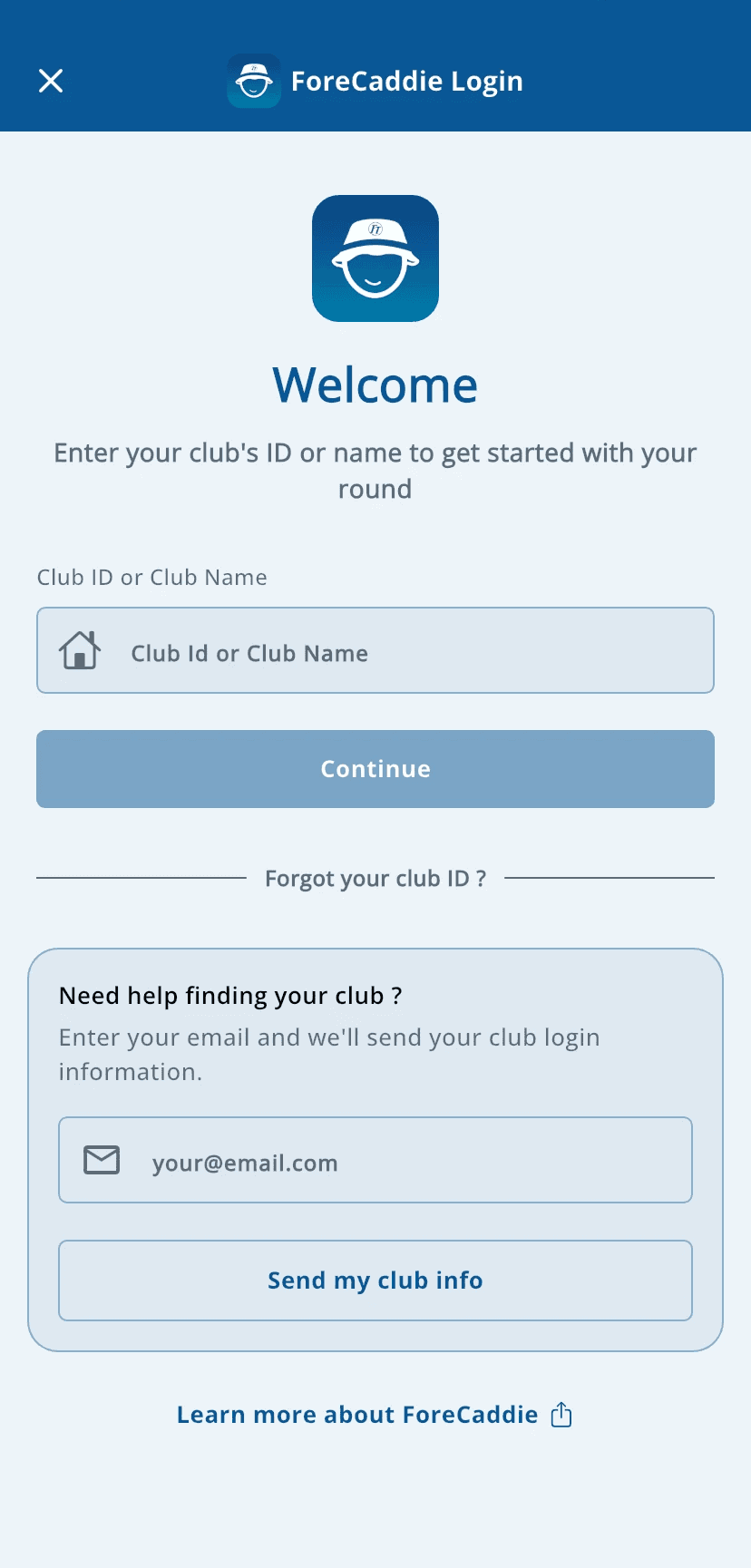

Find Your Club
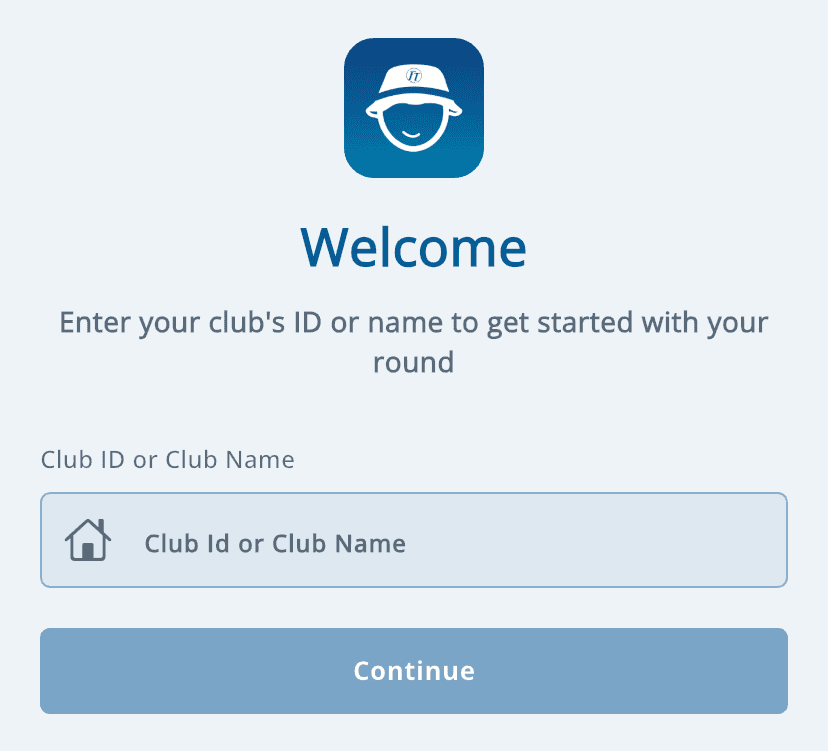
On the Welcome screen, you will enter in your club's ID number or name, the tap Continue.
Don't your your Club ID?
Enter your email address and tap Send my club info to receive your club's ID number.
Open your email and you will see an email from auto-send@foretees.com with your login information.
If your email was not found, contact your caddie manager to confirm your email address.

Get Logged In

Enter in your username and password, then tap Sign in.
For you first time logging in, you will be prompted to change your password.
If you don't know you login credentials, enter in your email and tap Send my login info to retrieve your information.
Once logged in you are all set! You will not need to login again on this device.
SeT Up Your Account
Once you successfully logged into the app, you can:
Upload your profile picture
Set your availability & schedule
Receive assignments from your caddie manager
Stay updated with announcements