FORETEES GUIDES
|
DINING & EVENTS
Dining reservations, built for a better service.
A practical implementation template for creating a reservation experience that protects capacity, empowers staff, and feels effortless for members.
IMPLEMENTATION SEQUENCE
Four stages from floor plan to first service
Configurations
Multiple meal periods vs. one meal period
When setting up meal periods in the system, you have the option to make them span across the whole day. While this makes it easier to set up, we recommend setting up meal periods that represent breakfast, lunch, and dinner.
Why it matters
By setting up your system based on meal times, it allows you to pull more accurate reports of your different available meal periods. In addition, when setting up Meal Periods, we recommend that Meal Periods do not overlap. This allows the system to clearly know when to cut over to the next meal time.
EXAMPLE SCHEDULE
Breakfast
8:00 AM - 10:59 AM
Lunch
11:00 AM - 3:59 PM
Dinner
4:00 PM - 10:00 PM
Use blockers to restrict reservations
Blockers are used to restrict reservations from being made for a specified day, time, or location.
Common uses include:
Club closures such as holidays and more
Inclement weather for the outdoor service areas
Private event hostings
Facility and course maintenance
How to add a blocker:
1. Go to Settings → Blockers and select Add.
Give the blocker a clear, descriptive name such as “Patio Closed Due to Weather” or " Closed for New Years Day"
Select the start & end date, applicable day of week, and affected locations.
Choose “Block Both Member and Staff Made Reservations,” then add a short member-facing reason. Members will see this message if they attempt to make a reservation.
Once ready, confirm Enabled toggle is ON and select Save to activate the blocker.
List tables individually for Auto Assign
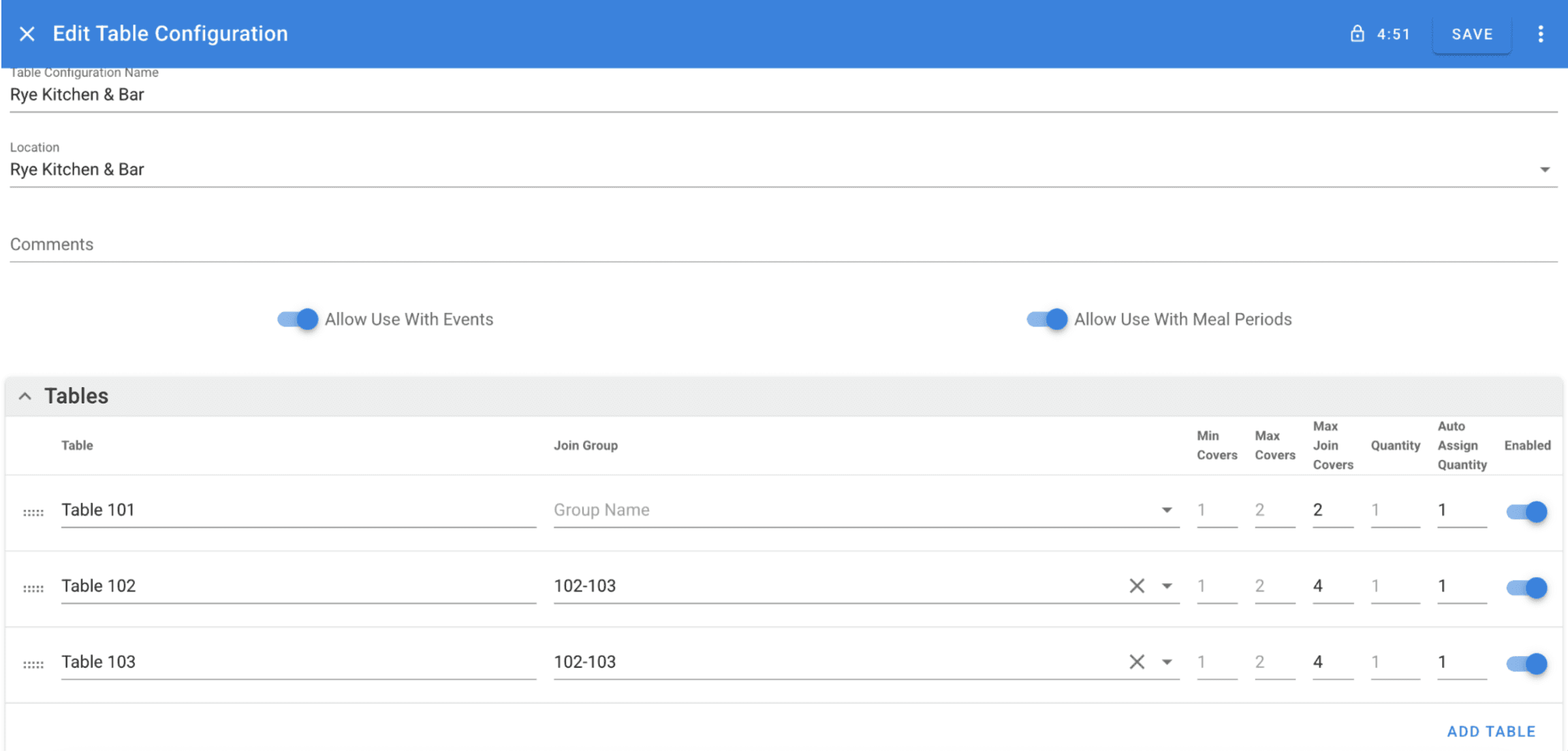
When using Auto Assign, list each table individually rather than grouping tables together. Individual tables allow the system to assign the exact table immediately, while a group often requires staff to return later and choose a specific table manually.
Best practice: One table record per physical table in the dining room.
QUICK ACTION
Use the Clock icon to start a new reservation
The Clock icon in the upper-right corner connects directly to the New Reservation page. Complete the date, location, party size, time, reservee names, occasion or special requests, then select Save in the upper-right corner.

EVENT EFFICENCY
When to use each seating type
When adding a new event you will be prompted to choose the seating type that best matches how guests will arrive and participate. The different types will determine how registrations are made for the event.
Single Seating
All guests arrive and participate at the same time.
Best for: wine dinners, one-seating buffets, & club meetings
Example: a 5–9 PM wine dinner with every attendee arriving at 5 PM.
Multiple Seatings
Guests choose from scheduled seating times.
Best for: holiday brunches, buffets, & fixed reservation events
Example: Easter Brunch at 10 AM, 12 PM, and 2 PM.

Ongoing Seatings
Guests book continuously across an event.
Best for: live music, à la carte dining, & open-house events
Example: patio reservations every 15 minutes from 5–8 PM.

Max party size vs. max cover count
Max Party Size
The most people a member or staff user can include in one reservation. If an Easter Brunch table seats 10, set the member maximum to 10. Some clubs allow staff a higher limit to manage larger groups.
Max Cover Count
The total number of people allowed across the entire event. For example, Easter Brunch may have a maximum cover count of 500 across every seating time.

Use recurring events to save setup time
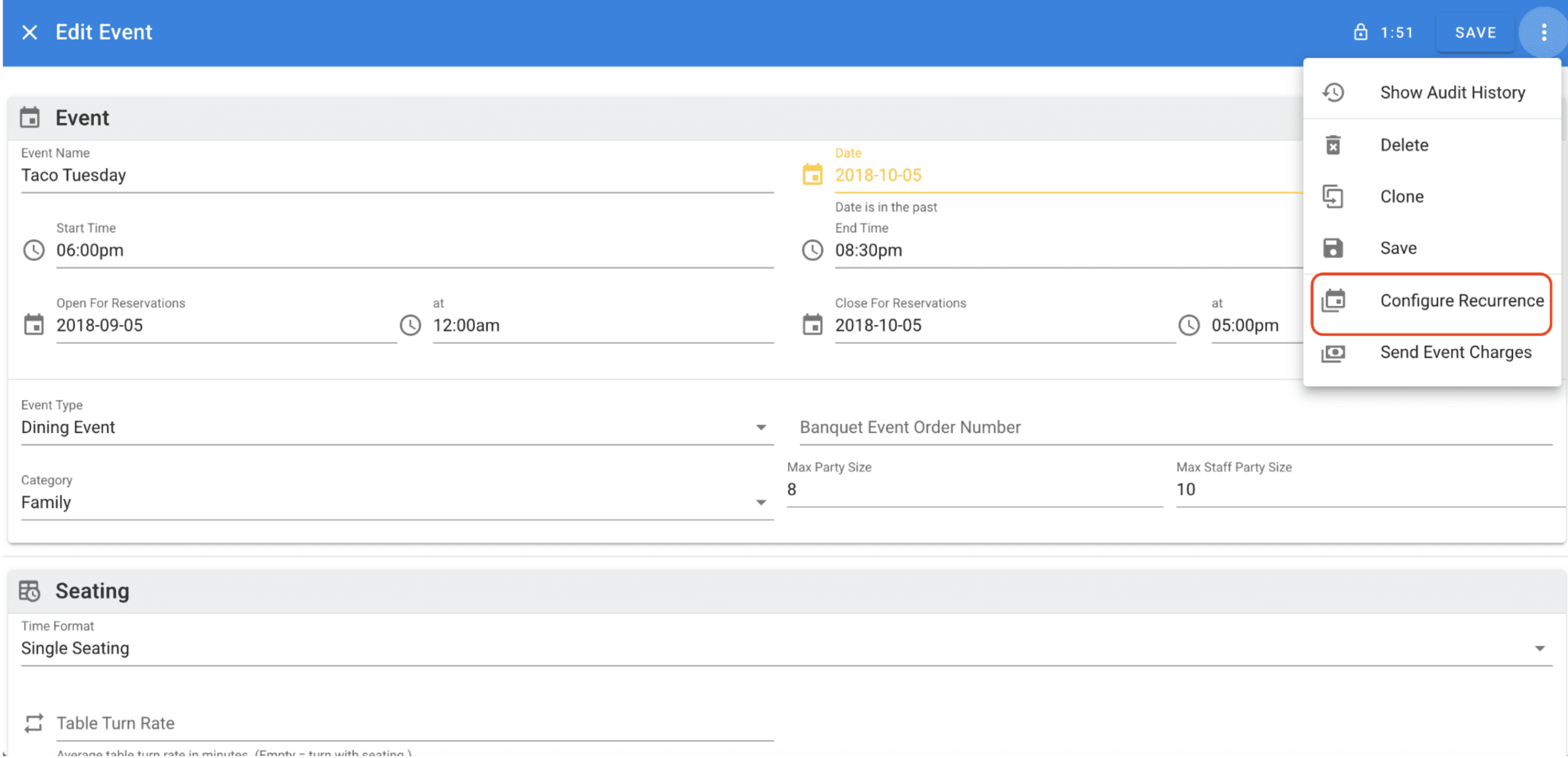
Recurring events let the club create a series of events at once instead of rebuilding the same setup repeatedly. For a weekly Taco Tuesday, configure a weekly occurrence and then the event is ready to go for every scheduled date.
Clone annual events year to year
Cloning events from year to year can be a time saver, especially for bigger events like Mother’s Day, Easter Brunch, Santa Brunch, etc.
To clone an event, click on the 3 dots in the upper right corner when in an event configuration. This will copy all the event information over so the new date is the only adjustment necessary.
It is also advised to update the event name slightly for the new year so reporting remains accurate. For example, change “Santa Brunch 2025” to “Santa Brunch 2026."
MEMBER RESERVATIONS
Include every reservee’s name
Listing everyone on a reservation gives club managers and staff a complete picture of who is arriving, whether they are members or guests. It is helpful to confirm names, allergies & preferences, plus the anticipated number of checks before service to prepare a more personal, accurate experience.
How to add someone to a reservation:
Select Add Reservee in the lower-right corner. A new field will appear, allowing you to select a member from the database or type in a guest’s name.

Use the info icon to check member details
When adding members to a reservation or searching for an existing reservation the info icon appears to the right of the member’s name.
Select it to view:
contact information
allergies
preferences
& other useful member details

How to add a reservation for a member
There are two quick ways to open the New Reservation page and enter reservation details.
Use the Clock icon
Log in and select the Clock icon in the upper-right toolbar. The New Reservation page opens immediately so you can enter the details.
Use the Reservations menu
Open Reservations, select the three-dot menu on the blue toolbar, then choose Add New Reservation to open the same entry page.

How to cancel a reservation for a member
How to find and cancel the reservation:
Open the Reservations tab from the top or left toolbar.
Select Today’s Reservations or Upcoming Reservations, depending on when the reservation is scheduled.
Find the reservation by using Member Search or scrolling the reservation list, then select it.
Open the three-dot menu in the upper-right corner, choose Cancel Reservation. Add a reason or notes if needed, then select Yes.
When notifications are enabled, members will receive a cancellation notice, but not the reason or internal notes.

MEMBER COMMUNICATION
Set a helpful message before booking
A default message helps members know what to expect before they make a dining reservation. Use it for reminders such as “Please call if your party size is greater than 10” or “Please review the dress code before coming to dine with us.”
How to edit Member Messages:
Go to Settings → Club Settings → Member Messages
Find “Default Message to display before booking reservation a la carte.”

Add dress code information to confirmation emails
In ForeTees, you have the ability to control what members see on confirmation emails. We recommend adding a dress code policy to the confirmation email, making it simple for members to forward the right expectations to their guests. Similar customizations are available for cancellation, waitlist, and event emails.
How to edit Member Emails:
Go to Settings → Club Settings → Member Notification Emails
Find “Dining Reservation Notification - Message”
Important
Do not remove anything shown in brackets. The system uses those fields to pull reservation details into the email.
REPORTING
Save custom report settings for fast access
Take advantage of customizable reports by tailoring filters, fields, and settings to the information you need most. Save frequently used report settings for quick access. This saves time and ensures you can easily run the reports you rely on most without rebuilding the same criteria each time.
How to save a custom report:
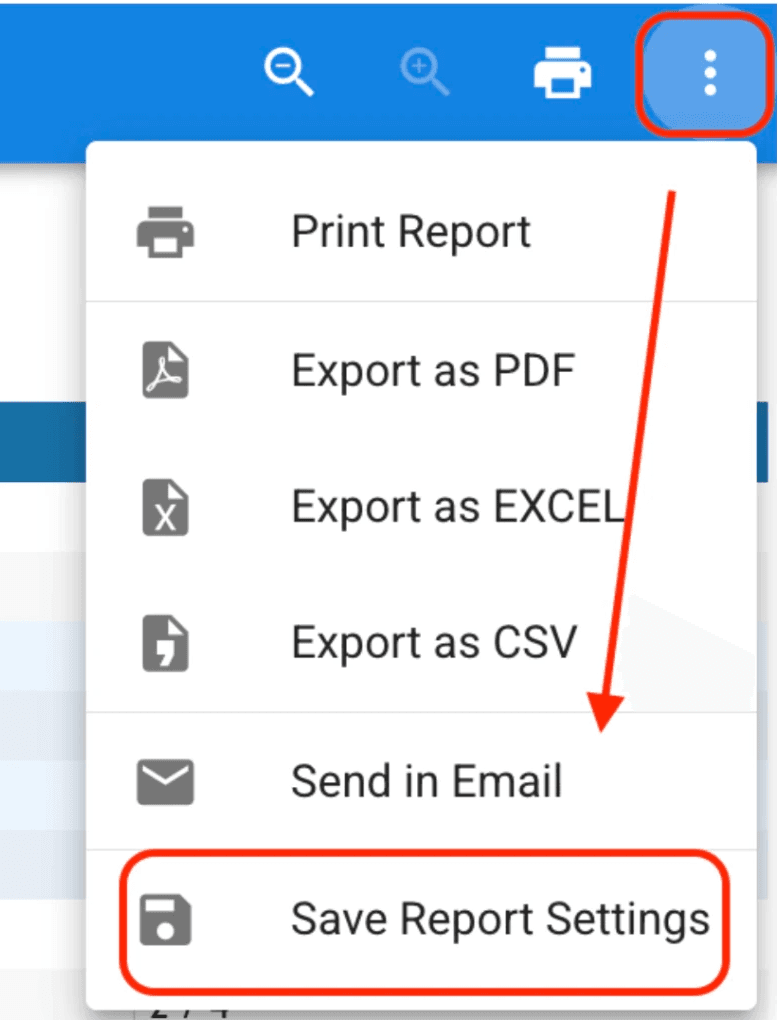
Navigate to Reports, choose the report type, add the information you want to display, and select Run.
Open the three-dot menu in the upper-right corner and select Save Report Settings.
MOST IMPORTANT BEST PRACTICE
Know where to find the Help & News Center
The ForeTees News Center is a useful resource for information across every system. In most systems, it is found in the lower-right corner near the mailbox. Dining provides access in two different areas.

FIRST 30 DAYS
Your reservation system gets smarter when service is the feedback loop.
Meet weekly to review waitlist conversions, no-shows, cover counts, table turns, and member feedback. Adjust one setting at a time, then document what changed and why.
RESERVATION FOUNDATION
Start with the rules that protect the dining experience.
Use this checklist with your food and beverage leadership team before your first reservation window opens.
Service periods have a clear start time, end time, and booking cadence.
Each location’s capacity reflects tables, staff coverage, kitchen pace, and special events.
Members understand when reservations open, how far ahead they can book, and when to cancel.
Hosts can capture allergies, special requests, member preferences, and seating notes consistently.
Stay up to date with all-things ForeTees with our monthly e-newsletter.